
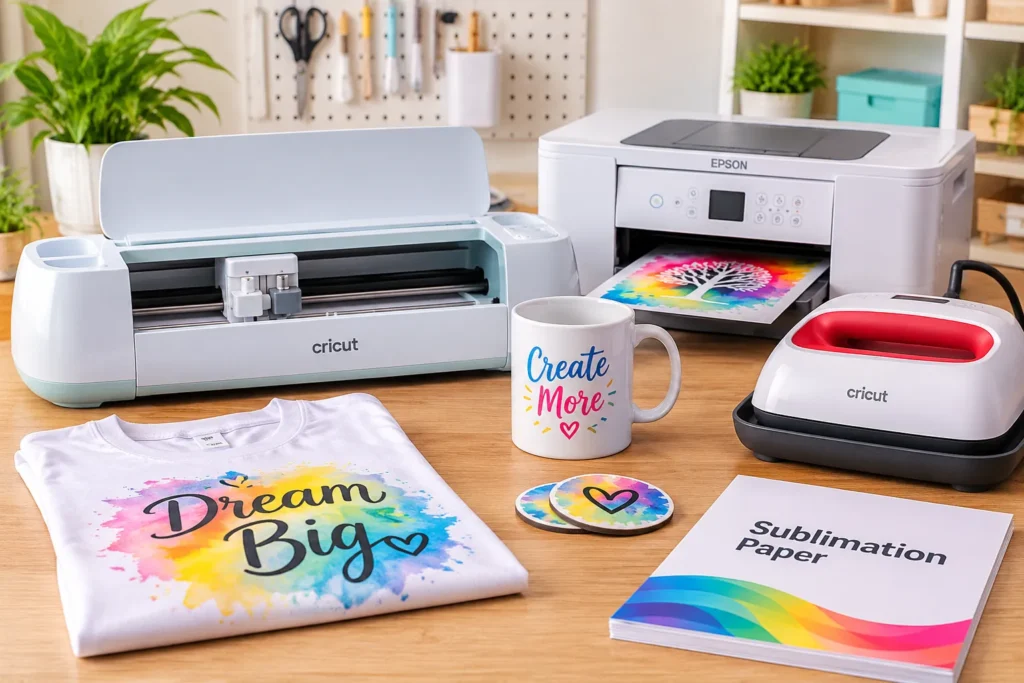
Already own a Cricut Maker, Explore, or Joy? You might not need another machine for every sublimation project. However, custom full-color sublimation designs require a separate printer.
A Cricut sublimation printer setup combines three different jobs: printing, cutting, and heat transferring. Understanding these differences helps you avoid unnecessary purchases.
This guide explains which printers work with Cricut, when Infusible Ink makes more sense, and what equipment you actually need. If you’re new to the process, start with our sublimation printer guide.
Do You Need a Sublimation Printer for Cricut?
Yes, if you want to print custom sublimation designs. Cricut machines cut materials and prepare designs, but they don’t print sublimation ink. You need a separate sublimation printer for that job.
There are three separate pieces of equipment in a typical setup:
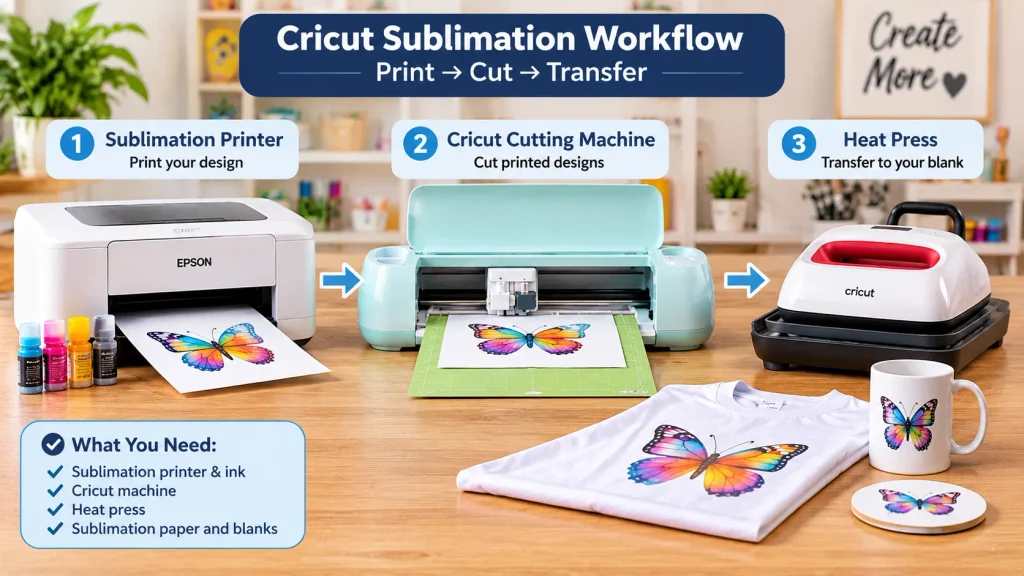
- Sublimation printer: Prints your artwork using specialized sublimation ink.
- Cricut cutting machine: Cuts printed designs when your machine supports Print Then Cut.
- Heat press: Transfers the printed design onto a compatible blank.
You don’t necessarily need all three.
Your existing Cricut can handle cutting. You can also use scissors instead of machine cutting for suitable designs.
What Cricut doesn’t do: It cannot replace a dedicated sublimation printer when you want custom, full-color printed transfers.
Does Cricut Make a Sublimation Printer?
No. Cricut sells cutting machines, heat presses, and Infusible Ink products. It doesn’t manufacture a dedicated sublimation printer.
You can use a compatible third-party sublimation printer with Cricut’s Design Space workflow.
What Your Cricut Machine Actually Does
Cricut Design Space helps you prepare artwork and cutting instructions. The cutting machine follows those instructions using its blade.
The Print Then Cut feature adds another step. Your Cricut scans printed registration marks before cutting around your design.
This matters because not every Cricut supports Print Then Cut. We’ll compare compatible models below.
Infusible Ink vs. Printed Sublimation: What’s Different?
You can create sublimation-style projects without purchasing an infusible ink printer.
Cricut Infusible Ink uses pre-inked transfer sheets, pens, and markers. Traditional printed sublimation uses a separate printer and specialized ink.
| Attribute | Cricut Infusible Ink | Printed sublimation |
|---|---|---|
| Separate printer | No | Yes |
| Ink | Pre-applied | Sublimation ink |
| Design flexibility | Available sheets and markers | Custom full-color artwork |
| Cutting | Cricut or manual | Cricut or manual |
| Transfer paper | Pre-inked sheets or laser copy paper for markers | Sublimation paper |
| Heat press | Required | Required |
| Compatible blanks | Specific compatible blanks | Polyester or polymer-coated blanks |
When Cricut Infusible Ink Works Without a Printer
Infusible Ink suits beginners who want straightforward projects.
You can cut pre-inked sheets into shapes using your Cricut. You can also draw designs using compatible Infusible Ink markers.
The heat process transfers the ink into compatible materials. It doesn’t simply attach artwork to the surface like adhesive vinyl.
However, you’re limited to available patterns, colors, sheets, and markers. You cannot print unlimited custom photographs or gradients.
Cricut also requires compatible blanks and appropriate heat-press equipment. Its Infusible Ink instructions explain these requirements. Help Center
When You Need a Separate Sublimation Printer
Choose printed sublimation when you want:
- Custom photographs on shirts and gifts.
- Full-color artwork and gradients.
- Personalized business merchandise.
- Repeatable designs for an Etsy shop.
- More control over your artwork.
Practical example: Someone making occasional personalized coasters can start with Infusible Ink. An Etsy seller producing custom photographic shirts needs the flexibility of printed sublimation.
The second approach costs more initially. It also gives you greater creative control.
Which Sublimation Printers Work With Cricut?
The best printer for Cricut sublimation depends on your budget, printing frequency, and project size.
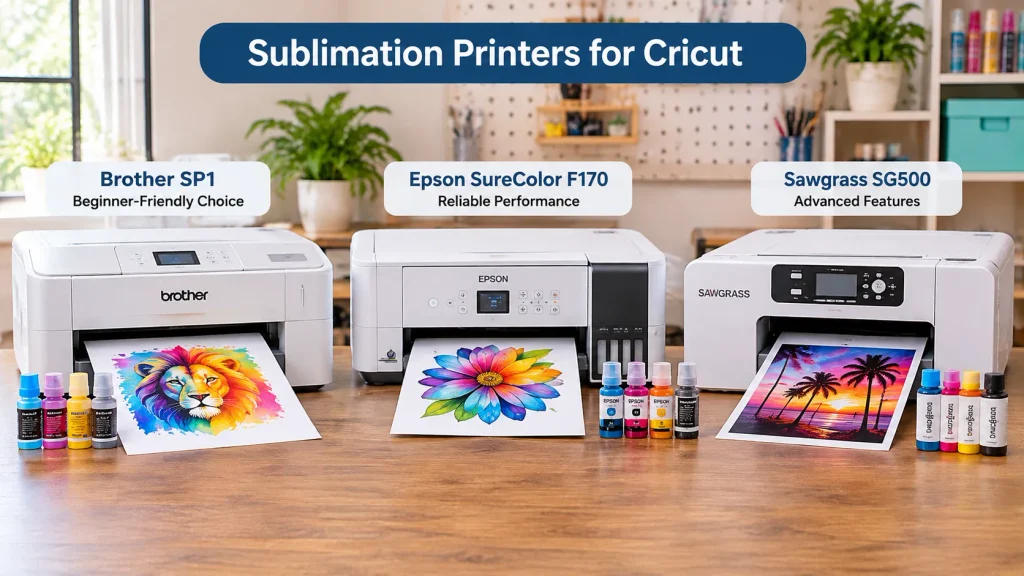
These three dedicated models deserve consideration. They are not officially Cricut-certified models. Check your printer’s media handling and Design Space workflow before purchasing.
Printer Comparison: Brother vs. Epson vs. Sawgrass
| Printer | Main advantage | Important limitation | Best suited for |
|---|---|---|---|
| Brother SP1 | Ready-to-use sublimation setup | Cartridge replacement costs | Beginners |
| Epson SureColor F170 | Genuine Epson sublimation ink | 8.5-inch maximum paper width | Home crafting |
| Sawgrass SG500 | Dedicated color-management workflow | Higher equipment costs | Frequent creators |
| Converted EcoTank | Potentially lower initial equipment cost | Conversion and warranty risks | Experienced hobbyists |
Specifications below reflect manufacturer documentation and the research available for this guide. Prices and retailer availability can change.
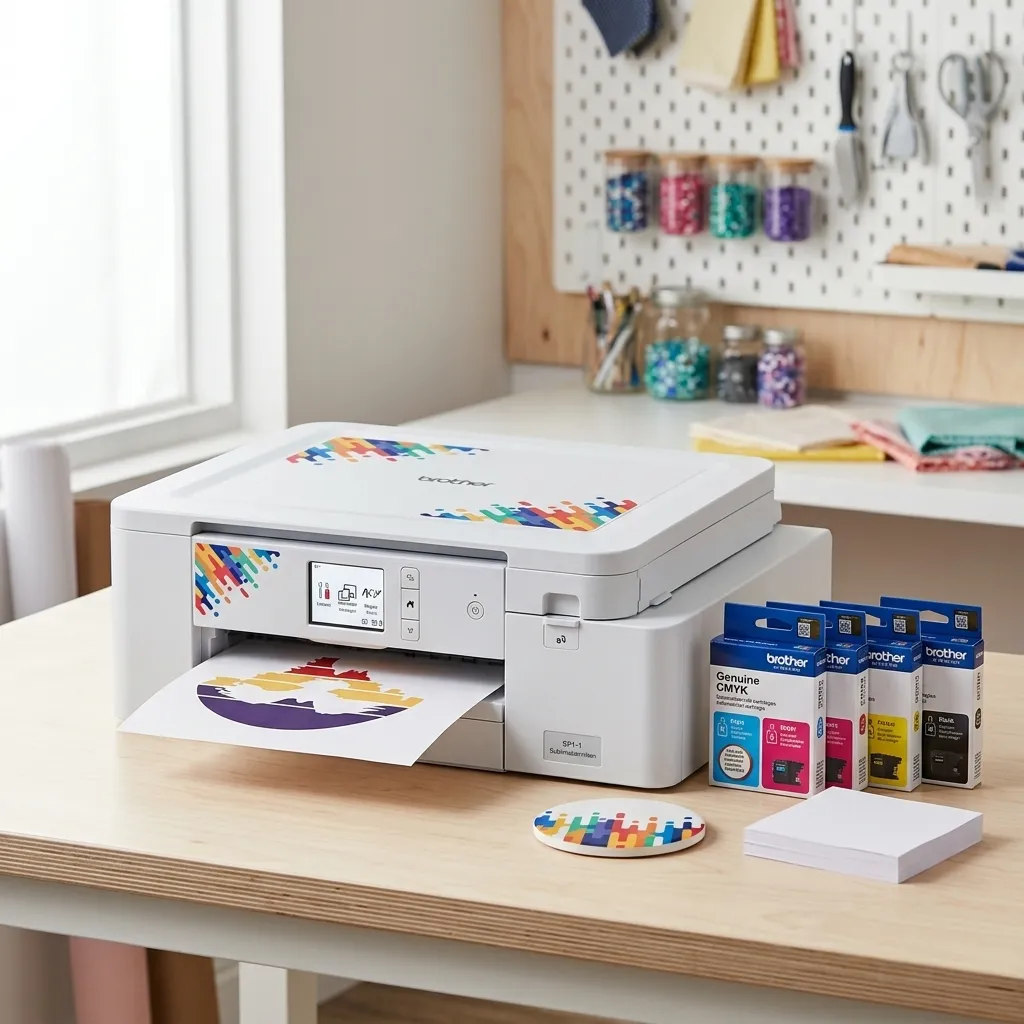
1. Brother SP1: A Dedicated Beginner Option
The Brother SP1 offers a straightforward starting point for people new to sublimation. Its included supplies reduce the initial setup work.

- Compatible with Artspira: Import and save up to 20 printing images easily with the Artspira app. With access to printing…
- Create in Artspira: To start using the Brother dye sublimation printer for DIY crafts, you must first download the Artsp…
Manufacturer specifications:
- Four genuine CMYK sublimation ink cartridges.
- 47 mL per cartridge.
- Ten sublimation paper sheets included.
- Wireless connection with Artspira integration.
- Two-year limited warranty and replacement service.
Advantages
- Purpose-built sublimation printing.
- Genuine ink included.
- Artspira provides additional design options.
Limitations
- You’ll eventually need replacement cartridges.
- Ten included paper sheets won’t support extended production.
- A separate heat press remains necessary.
Best for: Beginners who want a dedicated printer without converting an ordinary inkjet.
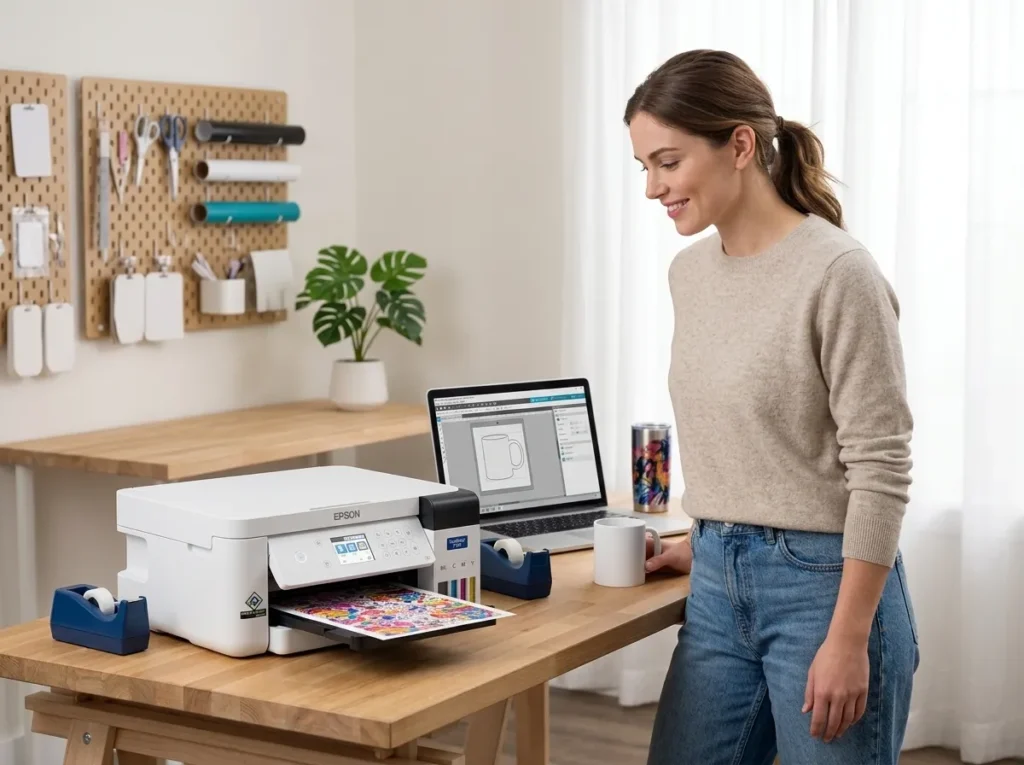
2. Epson SureColor F170: A Dedicated Epson Option
The Epson F170 is a purpose-built dye-sublimation printer. It uses genuine Epson sublimation ink rather than converted standard ink tanks.
Manufacturer specifications:
- Maximum paper width: 8.5 inches.
- Input capacity: Up to 150 sheets.
- Genuine Epson sublimation ink.
- USB and wireless connectivity.
- Compatible with Epson DS Multi-Use transfer paper.
Advantages
- Dedicated sublimation printing system.
- Convenient automatic paper handling.
- Genuine manufacturer-matched ink.
Limitations
- The 8.5-inch width restricts larger transfer designs.
- It isn’t intended for ordinary document printing.
- Check current retailer availability before purchasing.
Best for: Home crafters who want a dedicated Epson sublimation setup.
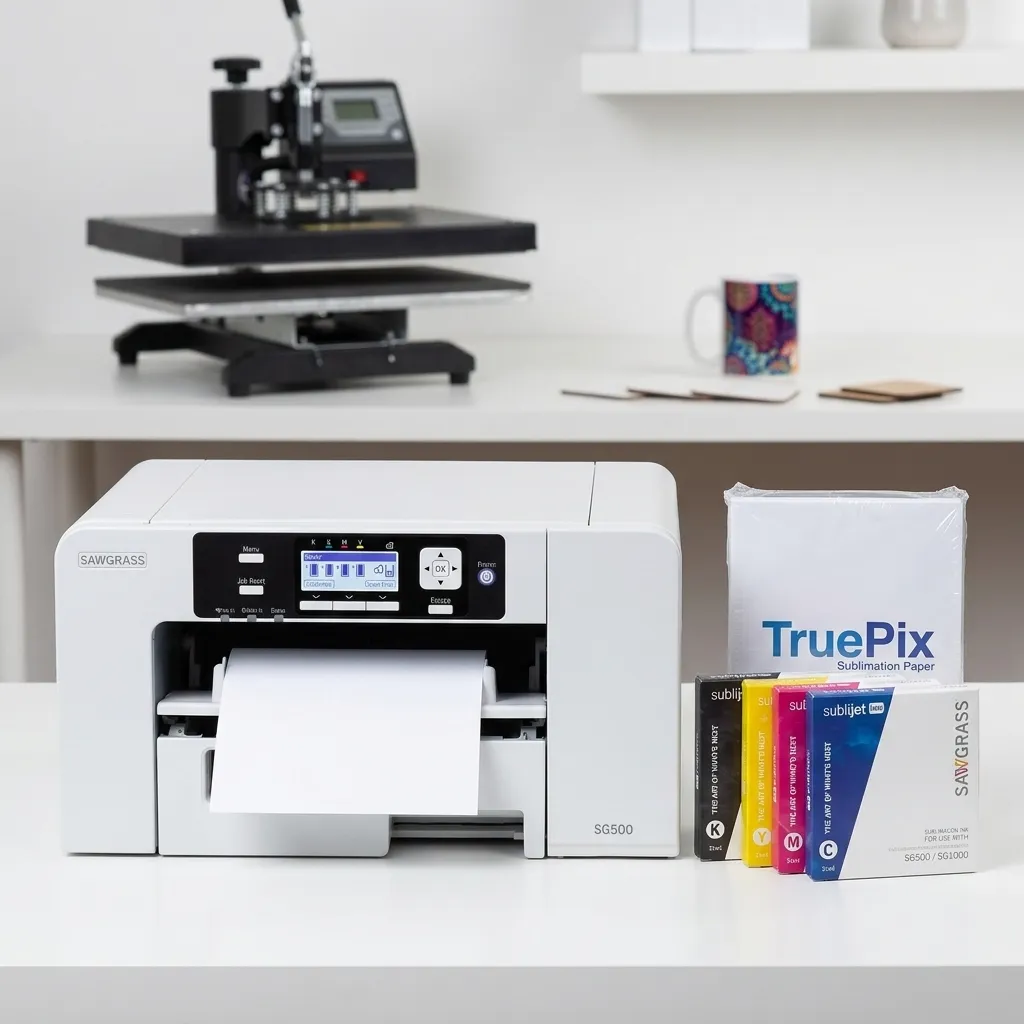
3. Sawgrass SG500: An Alternative for Frequent Printing
The Sawgrass SG500 targets creators who want more control over their sublimation workflow.
It supports standard media up to 8.5 × 14 inches. An optional bypass tray supports longer media up to 8.5 × 51 inches.
Advantages
- Dedicated sublimation printing system.
- Specialized color-management software.
- Wi-Fi, Ethernet, and USB connectivity.
- Three-year or 100,000-print warranty for qualifying purchases from October 1, 2025.
Limitations
- Higher equipment and ink costs.
- Its advanced workflow can exceed occasional crafting needs.
- Larger designs require the optional bypass tray.
Best for: Frequent creators and small businesses producing personalized merchandise.
4. Can You Convert an Epson EcoTank?
Yes. Some creators convert ordinary Epson EcoTank printers by replacing standard ink with sublimation ink.
Models such as the ET-2800 and ET-4700 appear in creator tutorials. However, these printers aren’t purpose-built sublimation machines.
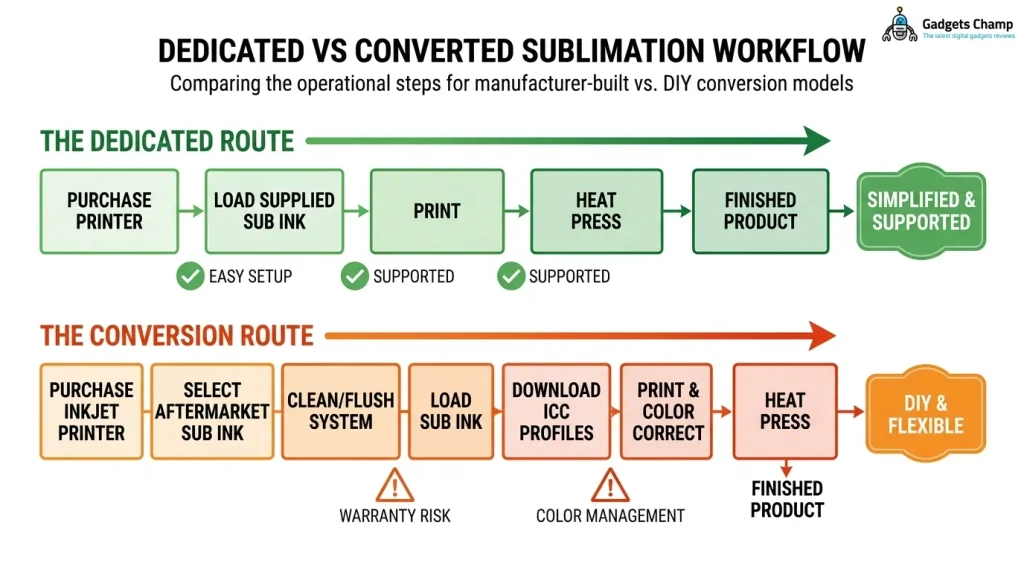
| Factor | Dedicated printer | Converted EcoTank |
|---|---|---|
| Setup | Purpose-built | Requires conversion |
| Ink | Matched sublimation ink | Third-party sublimation ink |
| Warranty | Manufacturer terms | Potential warranty limitations |
| Beginner setup | Generally easier | Requires additional care |
| Regular printing | Check model specifications | Not a convenient dual-purpose workflow |
Epson warns that non-genuine ink could cause damage outside its limited warranty coverage.
That makes conversion a real purchasing risk, not simply a cheaper alternative.
Best for: Experienced hobbyists comfortable managing conversion risks.
If you’re researching conversion options, read our separate Epson EcoTank sublimation printer guide.
For a wider comparison, see our top sublimation printer picks and our starter printer picks.
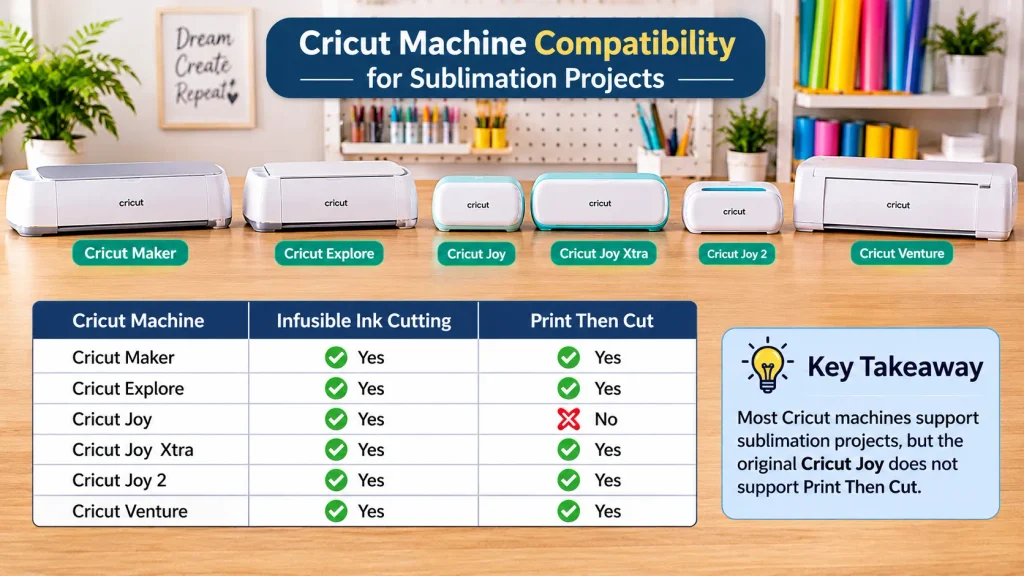
Which Cricut Machines Support Sublimation Projects?
Your Cricut model determines whether you can automatically cut printed designs.
However, cutting Infusible Ink sheets and using Print Then Cut are two different functions.
| Cricut machine | Infusible Ink cutting | Print Then Cut |
|---|---|---|
| Cricut Maker | Yes | Yes |
| Cricut Explore | Yes | Yes |
| Original Cricut Joy | Yes | No |
| Cricut Joy Xtra | Yes | Yes |
| Cricut Joy 2 | Yes | Yes |
| Cricut Venture | Yes | Yes |
Compatibility based on Cricut’s published documentation, including its Joy 2 functionality updates.
Cricut Maker, Explore and Venture
These machines support Print Then Cut.
You can print a sublimation design and use the cutting machine to follow its registration marks.
The Maker and Explore families also support cutting Infusible Ink transfer sheets.
Cricut Joy, Joy Xtra and Joy 2
Here’s an important distinction.
The original Cricut Joy cannot perform Print Then Cut. You can still cut Infusible Ink transfer sheets or prepare designs for manual cutting.
Cricut Joy Xtra and the newer Joy 2 support Print Then Cut.
Don’t confuse Joy 2 with the original Joy when purchasing equipment. Their capabilities differ.
Cricut’s official sublimation material instructions confirm the compatible machines and required equipment.
How to Use a Sublimation Printer With Cricut Design Space
A typical Cricut sublimation workflow connects your design software, printer, cutting machine, and heat press.
Step-by-Step Sublimation Workflow
1. Create your artwork: Open Cricut Design Space. Upload an image or create a design using its available tools.
2. Prepare the cutting operation: Choose Print Then Cut when you want your Cricut to cut around the printed artwork.
3. Check mirroring: Mirror the artwork when your transfer instructions require it. Check the preview before printing.
4. Select your printer: Choose your separate sublimation printer from the available printer options.
5. Print your design: Use suitable sublimation paper and genuine or compatible sublimation ink. Follow your printer’s recommended settings.
6. Allow the print to dry: Follow the ink manufacturer’s handling instructions before transferring the design.
7. Load the cutting mat: Place the printed sheet correctly when machine cutting is necessary. Follow the mat and material instructions.
8. Scan registration marks: Your Cricut reads the printed sensor markings to identify the cutting position.
9. Cut the design: Let the machine cut around the printed artwork. You can skip this step when scissors are sufficient.
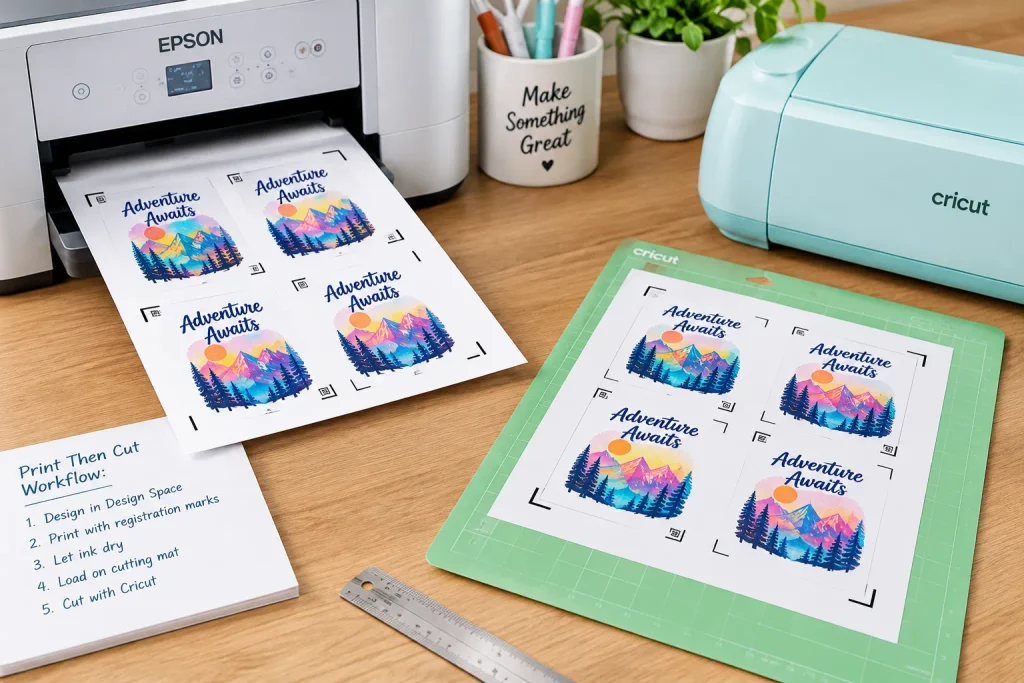
10. Prepare your blank: Remove dust and lint. Position your transfer and secure it when required.
11. Apply heat: Use the correct temperature, pressure, and pressing time for your specific ink and blank.
Important Design Space warning: Keep Print Then Cut within one Design Space workflow. Cricut warns that exporting the project as a PDF and printing outside that workflow can produce incorrectly sized sensor markings. Help Center
When Do You Actually Need Print Then Cut?
Not every sublimation design needs machine cutting.
Use Print Then Cut when you want precise, repeatable shapes around printed artwork.
For simple square designs, rectangles, and basic transfers, scissors may be enough.
This distinction can save you time when making occasional gifts or small batches.
What Else Do You Need for Cricut Sublimation?
A printer and cutting machine won’t complete your setup.
You also need transfer materials, compatible blanks, and suitable heat equipment.
| Equipment | Purpose | Requirement |
|---|---|---|
| Sublimation paper | Holds printed ink | Required for printed sublimation |
| Sublimation ink | Creates the dye transfer | Required |
| Compatible blank | Receives transferred dye | Required |
| Heat press | Applies controlled heat | Required |
| Heat-resistant tape | Holds transfers in position | As needed |
| Butcher paper | Protects pressing surfaces | As required by the process |
| Lint roller | Removes unwanted fibers | Recommended |
| Pressing mat | Supports the project | Depends on press |
EasyPress vs. Mug Press
Cricut EasyPress
Suitable for compatible flat projects, including shirts and fabric blanks.

- PRESS WITH THE BEST – Designed and built by the brand you know and trust, Cricut heat presses are the perfect complement…
- PRO-LEVEL PERSONALIZATION – Make pro-looking, personalized heat transfer projects that are vibrant and long lasting even…
Cricut Mug Press
Designed for compatible curved mug projects.

- BUNDLE INCLUDES – Cricut Mug Heat Press Machine + 12 Blank Ceramic Mugs – White (12oz)
- CREATE DECOR WITH A ONE-TOUCH SETTING — Get the mug of your dreams with Cricut Mug Press, a pro-level press designed to …
These presses serve different purposes. An EasyPress isn’t a replacement for a dedicated mug press.
For Infusible Ink, Cricut specifies a heat capability of 400°F (205°C). Always follow the correct temperature and timing instructions for your particular materials.
If you want a complete purchasing checklist, see our starter equipment checklist.
You can also explore best printers for crafting if you need a broader printer for multiple creative projects. For adjacent printing needs, our guide to printers for stickers covers a different printing workflow.
Frequently Asked Questions About Cricut Sublimation
1. Can a Cricut Do Sublimation Printing?
No. Cricut machines cannot print sublimation ink. They prepare and cut designs, while a separate sublimation printer creates the transfer. You also need a compatible blank and heat press. However, Cricut Infusible Ink offers a printer-free alternative for suitable projects.
2. What Is the Best Printer for Cricut Sublimation?
The Brother SP1 is a straightforward dedicated option for beginners. The Epson SureColor F170 offers a dedicated Epson workflow, while the Sawgrass SG500 suits frequent printing. Compare ink costs, paper size, warranty, and availability before choosing.
3. Is Cricut Infusible Ink the Same as Sublimation?
They use the same general heat-activated dye-transfer principle, but they’re not identical products. Infusible Ink comes in pre-inked sheets and markers. Traditional sublimation uses custom artwork printed with sublimation ink. The latter provides greater flexibility for photographs and personalized designs.
4. Can I Use a Regular Inkjet Printer for Sublimation?
No, not with ordinary inkjet ink. Traditional sublimation requires specially formulated sublimation ink and compatible transfer paper. Some inkjet models can be converted, but manufacturers may not support third-party ink. A dedicated sublimation printer offers a more straightforward setup.
5. Can Cricut Joy Do Print Then Cut?
No. The original Cricut Joy supports cutting and drawing, but not Print Then Cut. Cricut Joy Xtra and Joy 2 support this feature. You can still use the original Joy for cutting Infusible Ink sheets or manually prepare printed designs.
6. Do I Need a Cricut Machine if I Have a Sublimation Printer?
No. A sublimation printer can print your designs without a Cricut cutting machine. You can use scissors or another cutting method for suitable projects. However, a compatible Cricut adds precise machine cutting through Print Then Cut.
7. Can I Use a Cricut Mug Press Without a Sublimation Printer?
Yes. You can use Cricut Infusible Ink transfer sheets with compatible mugs. You don’t need a separate printer for those designs. However, custom full-color printed sublimation artwork requires a sublimation printer, suitable paper, and compatible mug blanks.
8. Is It Worth Getting a Sublimation Printer for Cricut Projects?
It depends on how often you create custom designs. Occasional crafters can start with Infusible Ink. Frequent creators and Etsy sellers benefit from the flexibility of printed sublimation. Calculate your equipment, ink, paper, and blank costs before investing.
If stickers are also part of your crafting plans, explore our separate guide to sublimation for stickers. Sticker printing involves different materials and finishing requirements.
Choose the Right Sublimation Setup for Your Cricut
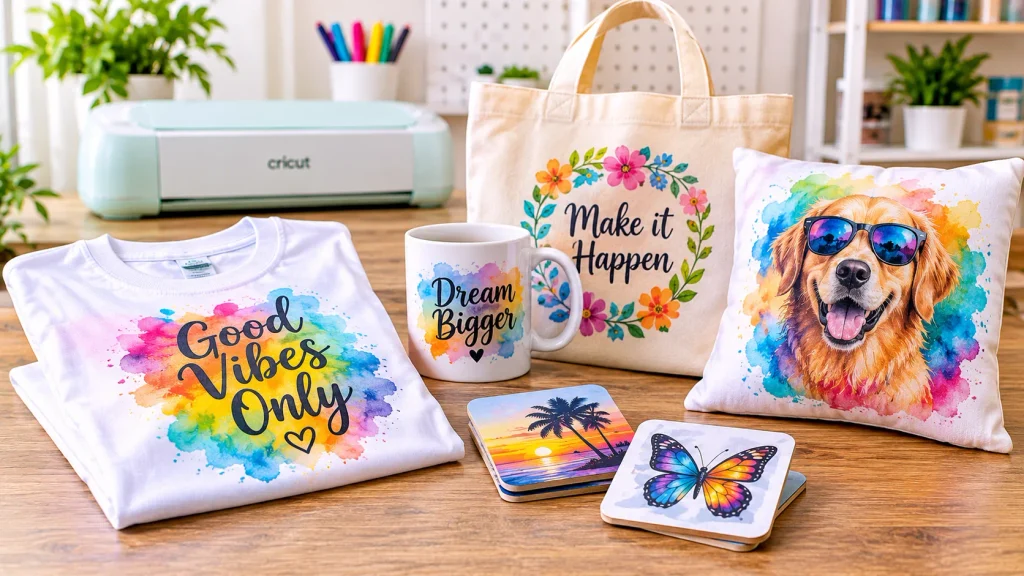
You don’t need to buy every piece of equipment immediately.
Start with the projects you actually want to create:
- Occasional personalized gifts: Start with Cricut Infusible Ink.
- Custom full-color designs: Choose a dedicated sublimation printer.
- Precise printed shapes: Choose a Cricut with Print Then Cut.
- Frequent business production: Compare Brother, Epson, and Sawgrass ownership costs.
- Larger transfers: Check maximum paper width before purchasing.
For most beginners, the Brother SP1 deserves a place on the shortlist. The Epson F170 and Sawgrass SG500 offer alternatives for different printing needs.
Before purchasing, compare the wider range of sublimation printers and check current Amazon availability.
The smartest Cricut sublimation setup isn’t the most expensive one. It’s the setup that matches your projects without making you pay for equipment you won’t use.
Author Bio
Kamran Asghar writes about printers, printing equipment and practical buying decisions at GadgetsChamp. His work focuses on manufacturer specifications, product compatibility and helping readers choose equipment that fits their actual printing requirements.