
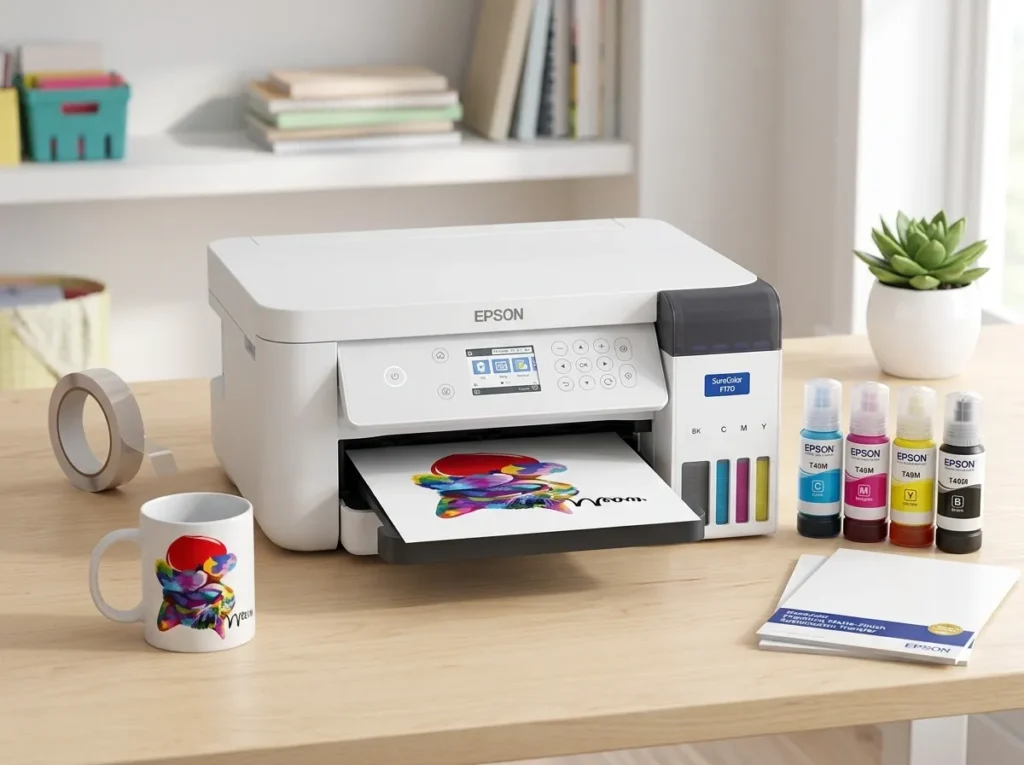
Buying a sublimation printer is only the first step. You also need compatible ink, transfer paper, a heat press, and suitable blanks. Choose the wrong combination, and your first project could leave you with faded colors, wasted supplies, or a printer that needs troubleshooting.
The best sublimation printer for beginners is usually a dedicated model that works with its intended sublimation ink system. The Epson SureColor F170 is our leading recommendation for this type of buyer. The Brother SP1 is worth considering if you prefer an app-guided crafting workflow. A converted Epson EcoTank may suit hands-on buyers who accept additional setup responsibilities.
This guide compares these three options, explains the equipment you actually need, and provides a first-30-days plan to help you avoid common mistakes.
Affiliate Disclosure: As an Amazon Associate I earn from qualifying purchases. GadgetsChamp may earn a commission when you buy through qualifying links, at no extra cost to you.
Which Sublimation Printer Is Best for Beginners?
For most first-time buyers, start with the Epson SureColor F170. It uses a dedicated sublimation ink system and avoids the conversion process required by an ordinary inkjet printer.
If you prefer a mobile crafting workflow, compare the Brother SP1 before deciding. If you enjoy DIY projects and accept more troubleshooting, investigate a compatible converted EcoTank.
| Printer | Best For | Printer Type | Maximum Paper Width | Main Advantage | Main Drawback |
|---|---|---|---|---|---|
| Epson SureColor F170 | Dedicated starter setup | Purpose-built sublimation | 8.5 inches | Genuine sublimation ink and straightforward setup | Limited print width |
| Epson EcoTank ET-2800 | DIY-oriented buyers | Ordinary inkjet requiring conversion | 8.5 inches | Familiar tank-based printer platform | Conversion and ink compatibility risks |
| Brother SP1 | App-guided crafting | Purpose-built sublimation | Verify current media specifications | Artspira app and included sublimation supplies | Heat press sold separately |
Price snapshot: Epson lists the F170 at a $399.00 US manufacturer suggested retail price (MSRP). Brother’s product page lists the SP1 at $399.99 at the time of research. These are manufacturer prices, not verified Amazon prices. The ET-2800 conversion route has no single reliable total because printer prices, compatible inks, and setup requirements vary.
Before buying, compare our top sublimation printer picks if you want a broader roundup beyond beginner-specific recommendations.
The Best Sublimation Printers for Beginners
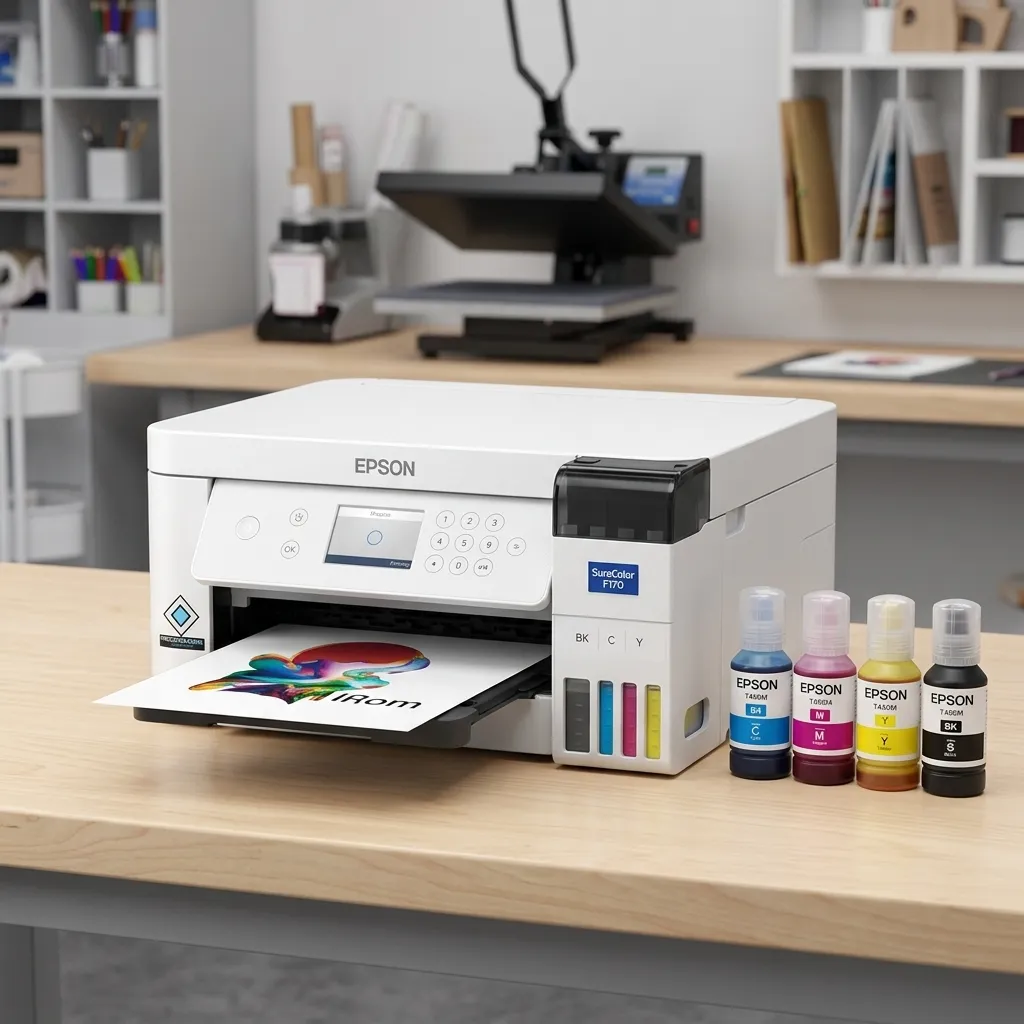
1. Epson SureColor F170: Best Dedicated Sublimation Printer
The verdict: Choose the Epson SureColor F170 if you want a purpose-built sublimation printer without the uncertainty of converting an ordinary inkjet.
The F170 is designed for desktop dye-sublimation printing. Epson supplies a dedicated ink system, print software, and a 150-sheet auto-feed tray. Its compact design also suits a home craft table or small workspace.
Key specifications
| Specification | Epson SureColor F170 |
|---|---|
| Printer type | Dedicated dye-sublimation |
| Maximum paper width | 8.5 inches |
| Input tray | Up to 150 sheets |
| Ink system | Epson T49M sublimation ink |
| Connectivity | USB, Wi-Fi, Wi-Fi Direct, Ethernet |
| Manufacturer MSRP | $399.00 |
| Warranty reference | Standard one-year unit-exchange warranty listed by Epson |
Why it suits beginners
The biggest benefit is avoiding the ink-conversion decision. You do not need to determine whether a standard inkjet can accept a particular third-party sublimation ink system.
The 150-sheet tray also gives you room to prepare several designs without reloading paper after every print. USB and wireless connectivity provide flexible ways to connect the printer.
The 8.5-inch maximum paper width is the main limitation. It works for many small crafts, mugs, mousepads, and other compatible blanks, but it restricts larger design layouts.
Pros
- Purpose-built sublimation printing system.
- Genuine Epson sublimation ink.
- 150-sheet auto-feed tray.
- Multiple connection options.
- Compact desktop footprint.
Cons
- Maximum paper width of 8.5 inches.
- Requires a separate heat press.
- Manufacturer pricing does not guarantee current retail availability.
- Not intended for unrestricted use with third-party ink.
Real-world considerations: We have not independently measured print speed, color accuracy, or long-term reliability for this article. The specifications above describe the manufacturer’s product, not firsthand performance results.
Best for: Beginners who want a dedicated sublimation printer for home crafts and small projects.
For a deeper product-specific assessment, See our guide to Epson SureColor F170 review.
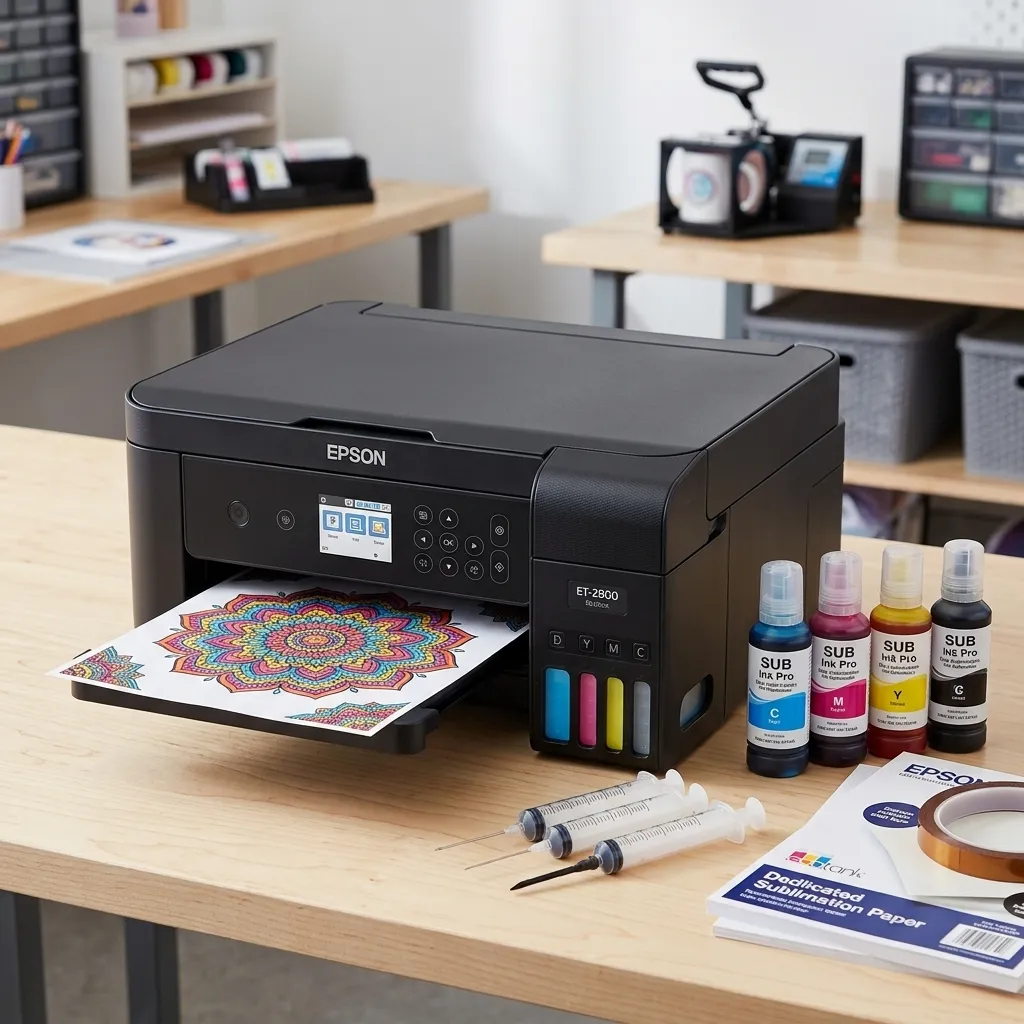
2. Epson EcoTank ET-2800: Best DIY Conversion Route
The verdict: Consider the Epson EcoTank ET-2800 only if you understand the conversion requirements and are comfortable managing a nonstandard ink setup.
The ET-2800 is an ordinary inkjet printer, not a factory-configured sublimation printer. Buyers investigate it because an ink-tank printer may offer an appealing entry point for a DIY crafting setup.
However, the important question is not whether an EcoTank has refillable tanks. It is whether the exact printer, ink system, and intended workflow are compatible.
Key specifications
| Specification | Epson EcoTank ET-2800 |
|---|---|
| Printer type | Standard inkjet all-in-one |
| Paper width | Up to 8.5 inches |
| Original ink system | Epson dye-based ink system for its intended printing use |
| Sublimation-ready from factory | No |
| Conversion | Requires separate compatibility research |
| Heat press | Separate purchase |
What makes conversion difficult?
A conversion changes the printer’s intended ink workflow. You must verify the exact model, compatible sublimation ink, initial filling procedure, color-management requirements, and support implications.
Do not assume every EcoTank model or generation can use the same ink. A setup that works for one printer may not work for another.
Epson’s ET-2800 documentation warns that damage caused by third-party ink or ink not designed for the printer may fall outside its warranty coverage. Review the official ET-2800 support and warranty information before attempting a conversion.
Pros
- Tank-based platform that DIY buyers may find familiar.
- Can appeal to buyers who already own a suitable printer.
- Offers a hands-on learning route for technically confident crafters.
Cons
- Not ready for sublimation straight out of the box.
- Requires careful ink and model compatibility checks.
- Troubleshooting can take time and consume supplies.
- Potential warranty and support complications.
Best for: DIY buyers who value flexibility over the simplest possible setup.
Before purchasing, read our guide to which EcoTank models convert, which covers the detailed compatibility and conversion instructions, leaving this article focused on the beginner buying decision.
3. Brother SP1: Best Alternative for Guided Crafting
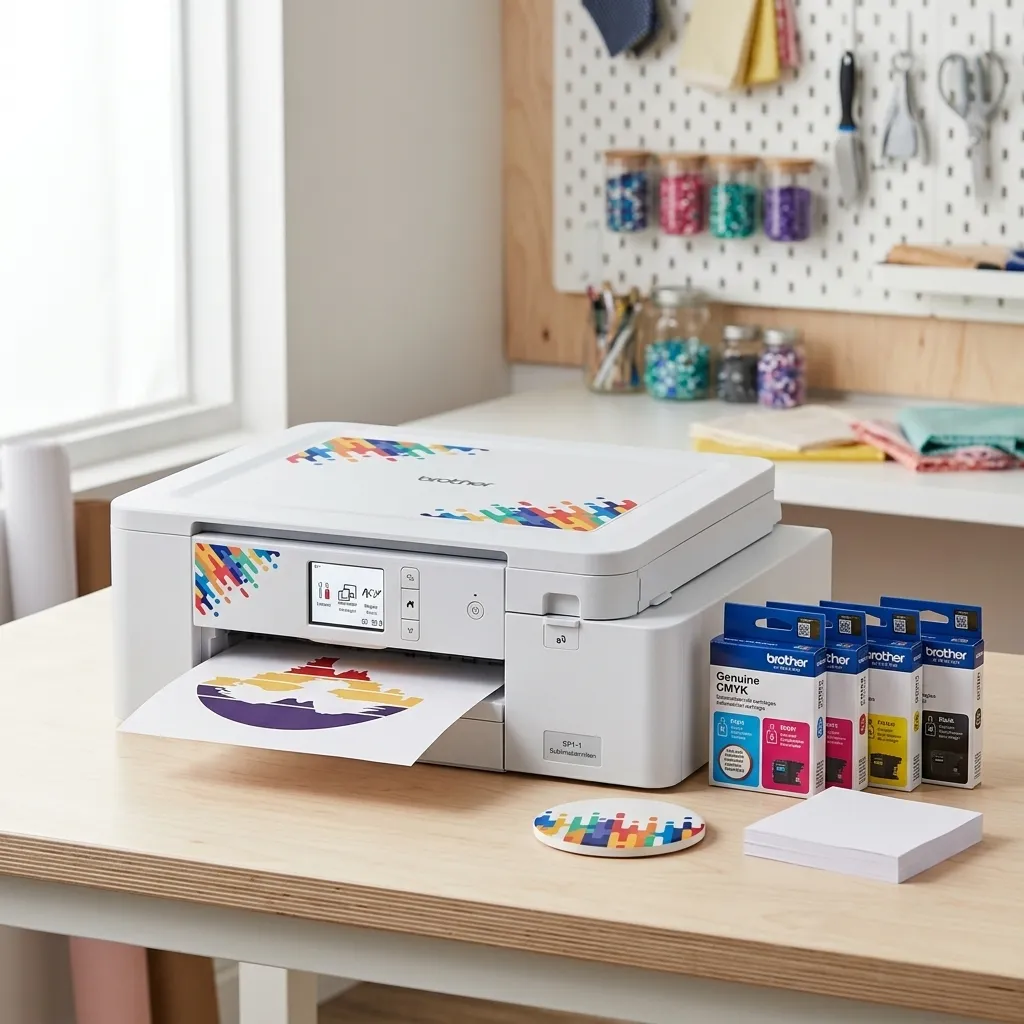
The verdict: Consider the Brother SP1 if you want a dedicated sublimation printer with a crafting-focused app and included starter supplies.
Brother designed the SP1 for projects such as polyester garments and polymer-coated products. Its Artspira app supports design access and mobile-based crafting workflows.
Brother’s US product page lists the SP1 at $399.99 during this research. The listed package includes four full-size sublimation ink cartridges and 10 sheets of sublimation paper. A compatible heat press remains an additional purchase.
Key specifications
| Specification | Brother SP1 |
|---|---|
| Printer type | Dedicated sublimation |
| Ink | Brother genuine sublimation cartridges |
| Included paper | 10 sheets listed |
| Design workflow | Artspira app and computer printing |
| Heat press | Sold separately |
| Manufacturer price reference | $399.99 |
| Warranty | Two-year limited warranty and replacement service listed by Brother |
Why consider it?
The SP1 provides a guided route from design selection to printing. Brother also provides setup videos, drivers, and a user guide through its official SP1 support page.
That support can help a beginner find instructions without piecing together a conversion process from unrelated tutorials.
However, app access does not remove the need to learn transfer settings, compatible blanks, and heat-press handling. Check the current app features and included supplies before buying.
Pros
- Purpose-built sublimation printer.
- Crafting-focused Artspira workflow.
- Starter ink and paper included in the listed package.
- Manufacturer setup videos and documentation.
Cons
- Requires a separate heat press.
- Included paper is limited to the listed starter quantity.
- App features and compatibility should be checked before purchase.
- Current prices and package contents can change.
Best for: Home crafters who value a supported, app-guided workflow.
Dedicated Sublimation Printer vs. Converted EcoTank
Both routes can support sublimation projects, but they place different responsibilities on the buyer.
A dedicated printer uses an intended sublimation ink system. A converted inkjet requires you to verify the model and manage a modified ink workflow.
| Factor | Dedicated Printer | Converted EcoTank |
|---|---|---|
| Initial setup | Follow the dedicated printer’s instructions | Requires conversion planning |
| Ink compatibility | Use the specified sublimation ink | Verify exact printer and ink compatibility |
| Troubleshooting | Use model-specific support | May involve printer and third-party ink issues |
| Warranty considerations | Follow the manufacturer’s terms | Third-party ink damage may not be covered |
| Beginner suitability | Generally easier | Better for hands-on buyers |
Which Option Is Easier for a First-Time User?
A dedicated printer is the more straightforward choice when you want to focus on learning design preparation and heat transfers.
You still need to install the driver, load compatible paper, configure print settings, and learn the heat press. However, you avoid the extra conversion decisions.
For a fuller explanation of dedicated versus converted sublimation printers, compare the ink system, included supplies, support terms, and intended use before choosing.
When Does Converting a Printer Make Sense?
A conversion may suit you if you enjoy technical projects, understand the risks, and have verified compatibility for the exact model.
Do not choose it solely because the printer’s purchase price appears lower. Ink mistakes, troubleshooting, wasted blanks, and replacement supplies can reduce the initial savings.
Use our EcoTank conversion guide for model-specific research. If you want to understand the conversion process before committing, keep that separate from the printer recommendations on this page.
What Do You Need to Start Sublimation Printing at Home?
A sublimation printer creates the design transfer. It does not apply the heat and pressure needed to finish the product.
Your starter setup needs the right printer, ink, paper, heat press, and compatible blank. Small accessories help prevent movement and unwanted ink transfer during pressing.
Essential Equipment for Your First Project
Use this checklist before placing an order.
- Sublimation printer: Choose a dedicated printer or a verified compatible conversion.
- Compatible sublimation ink: Match the ink to the printer’s intended or verified conversion setup.
- Sublimation transfer paper: Select paper suited to your printer, ink, and blank.
- Heat press: Choose a press suitable for the dimensions and type of product.
- Heat-resistant tape: Hold the transfer in place when the blank and workflow require it.
- Protective paper: Protect the press and blank from unwanted ink transfer.
- Compatible blank: Start with a polyester fabric or an appropriately polymer-coated product.
A small starter selection is better than a large collection of blanks. It lets you learn the workflow before committing money to products you may not use.
For the complete equipment inventory, see our sublimation equipment checklist.
Choose the Right Blank for Your First Transfer
Traditional dye sublimation works best with suitable polyester fabrics and specially coated rigid products.
On polyester, heat allows the sublimation dye to bond with the material. On a suitable polymer coating, it can create a durable design when you follow the blank manufacturer’s instructions.
Untreated cotton does not provide the same direct dye-sublimation result. Ordinary uncoated objects also lack the surface needed for a standard sublimation transfer.
For your first project, choose one compatible blank and follow its instructions for temperature, time, pressure, and protective materials.
If your main goal is apparel, our sublimation printer guide for T-shirts explains the relevant printer and material considerations.
Do You Need a Computer, Cutting Machine, or Special Software?
Not every beginner needs a full crafting workshop.
| Item | Essential? | Why |
|---|---|---|
| Computer or compatible mobile device | Depends on the printer | Prepares and sends designs |
| Design software | Depends on the workflow | Creates or edits artwork |
| Cutting machine | No | Useful for separate cutting workflows |
| Extra blanks | No | Buy more after successful test transfers |
| Advanced color-management tools | No for every beginner | May help with more demanding color workflows |
The Brother SP1 supports a mobile app workflow, while computer-based workflows offer other design and print options. Check the exact software requirements before choosing.
If you plan to combine a cutting machine with sublimation, read our Cricut sublimation workflow guide.
How Much Does a Beginner Sublimation Setup Cost?
The printer price is only part of your initial budget. You also need a heat press, compatible blanks, transfer paper, and small accessories.
The following worksheet separates verified price references from costs that still need live retail checks.
Printer Price vs. Complete Startup Cost
| Item | Cost Treatment | What to Verify |
|---|---|---|
| Epson SureColor F170 | $399.00 manufacturer MSRP | Current retailer price and availability |
| Brother SP1 | $399.99 manufacturer price reference | Current Amazon price and package contents |
| Epson EcoTank ET-2800 | Live price required | Exact model and conversion supplies |
| Sublimation ink | May be included with a dedicated printer | Do not count included ink twice |
| Sublimation paper | Some starter supplies may be included | Verify quantity and compatibility |
| Heat press | Additional cost | Press type and usable dimensions |
| Compatible blanks | Depends on your first project | Material and coating compatibility |
| Tape and protective paper | Small accessory allowance | Suitable size and heat resistance |
Do not treat the printer MSRP as your complete startup cost. A final budget should use dated prices for the actual items you plan to buy.
Calculate the total by adding the printer, any missing ink or paper, the heat press, a small blank selection, and required accessories. If you already own a suitable computer, do not add another device unnecessarily.
What Can You Skip Until Your First Successful Transfer?
You can postpone optional upgrades until you know what you want to make.
- A large inventory of blanks.
- A cutting machine you do not need for your first project.
- Multiple heat presses for different product types.
- Advanced color-management tools before you understand the basic workflow.
- Bulk supplies purchased before testing compatibility.
For a full breakdown of equipment budgets and ongoing expenses, use our sublimation printer startup-cost guide. That page covers detailed budgets and cost-per-print calculations.
Your First 30 Days With a Sublimation Printer
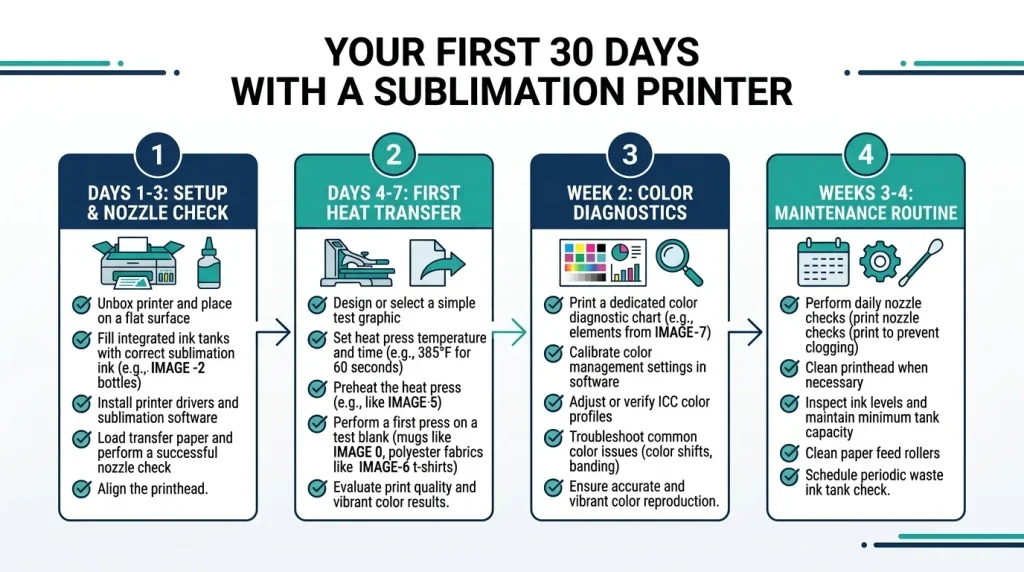
The first month should focus on learning a repeatable process. You do not need to master every product type, color profile, or accessory at once.
This four-stage plan is a practical learning framework, not a guarantee that every printer will need the same maintenance or reach the same milestones.
Days 1–3: Set Up the Printer and Check Print Quality
- Install the printer using its official setup instructions.
- Confirm that you use the correct ink system.
- Install the appropriate driver and select compatible transfer paper.
- Print a small test design.
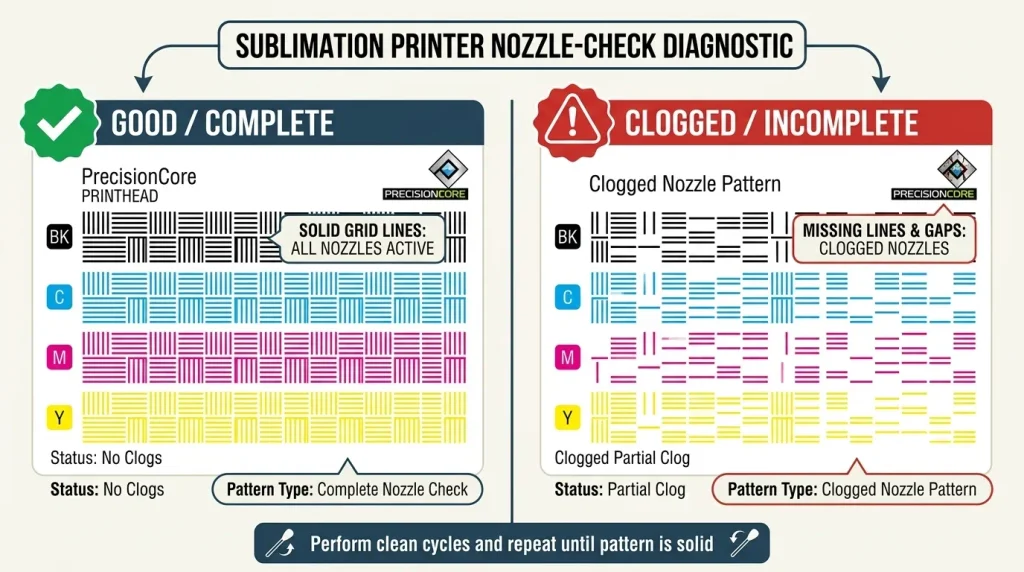
- Run a nozzle check if your printer supports it.
A nozzle check shows whether the printhead produces the expected pattern. Missing lines or gaps can indicate a print-quality problem that needs investigation.
Do not start by printing a large design on an expensive blank. A small test helps identify basic problems before you spend more supplies.
Days 4–7: Make Your First Heat Transfer
Choose one compatible blank and prepare a simple design.
- Confirm the blank’s material and coating.
- Mirror the design when the transfer workflow requires it.
- Position the transfer carefully and use heat-resistant tape where appropriate.
- Protect the blank and press surface as directed.
- Follow the blank and heat-press manufacturers’ time, temperature, and pressure instructions.
Do not assume one transfer setting works for every shirt, mug, or coated product. Different materials and blanks can require different conditions.
After pressing, inspect the result and record the settings you used. That record gives you a starting point for future troubleshooting.
Week 2: Diagnose Dull Colors and Missing Lines
A dull transfer does not automatically mean your printer needs replacement.
First, separate print-side problems from transfer-side problems.
If the printed design has missing lines:
- Run a nozzle check where supported.
- Compare the pattern with the manufacturer’s instructions.
- Follow the model-specific cleaning procedure if needed.
- Avoid repeatedly running cleaning cycles without checking the results.
If the transfer looks wrong:
- Check the correct paper and print settings.
- Confirm that you used the right side of the transfer paper.
- Check the design orientation.
- Review the blank’s transfer instructions.
- Inspect alignment and movement during pressing.
Use our sublimation print settings and software guide for deeper troubleshooting. Epson also provides official guidance for diagnosing lines and print-quality problems.
Weeks 3–4: Build a Simple Maintenance Routine
Maintenance should follow your exact printer’s instructions rather than an arbitrary universal schedule.
- Check print quality before important projects.
- Follow the manufacturer’s guidance for periods of inactivity.
- Use only approved cleaning procedures.
- Store ink and paper according to their instructions.
- Keep the work area clean and protect supplies from unsuitable storage conditions.
- Record recurring problems and the steps that resolve them.
Do sublimation printers clog if you leave them unused? Printhead issues can occur, but the risk and recommended response depend on the printer and its ink system.
Do not promise yourself that printing on a fixed weekly schedule will prevent every clog. Use the manufacturer’s maintenance guidance and investigate poor print quality before consuming ink on repeated cleaning cycles.
Common Beginner Mistakes That Waste Money
The most expensive mistakes often happen before the first successful transfer. Avoid these three problems.
Mixing Incompatible Ink, Paper, and Printer Settings
Do not treat all inkjet printers as sublimation-ready. Ordinary ink and sublimation ink serve different purposes.
Check the exact printer model, ink compatibility, paper requirements, and driver settings. If you choose a conversion, verify the entire setup before filling the tanks.
Ignoring Nozzle Checks and Printhead Problems
Missing lines can affect the final transfer. Continuing to print without diagnosing the issue may waste paper, ink, and blanks.
Use a nozzle check when supported and follow the printer’s cleaning instructions. If the problem persists, consult official support rather than assuming that another cleaning cycle will fix it.
Buying Equipment Before Choosing a Product
A press designed for one type of product may not suit another. A large press also takes more workspace and may exceed what you need for occasional crafts.
Choose your first product before buying accessories. Then select the printer, press, and compatible blank around that project.
For a wider comparison of printer types and use cases, see our general sublimation printer buying guide.
An Illustrative First-Project Scenario
Consider a beginner who wants to make a single polyester T-shirt at home.
Buying a printer alone does not complete the setup. The person still needs compatible ink, sublimation paper, a suitable heat press, a compatible shirt, and the required protective supplies.
A dedicated printer removes the conversion decision, but it does not remove the need to learn the transfer process. A converted EcoTank may introduce additional setup checks before the first print.
The practical lesson is simple: choose one project, price the complete setup, and verify every component before purchasing.
Choose Your First Sublimation Printer
For most beginners, the Epson SureColor F170 is the starting point because it is designed for sublimation printing and avoids a DIY conversion. The Brother SP1 is a strong alternative to investigate if you prefer its app-guided workflow and included starter supplies.
Choose the EcoTank ET-2800 route only after confirming exact compatibility and accepting the added responsibilities.
Before you buy, compare the broader sublimation printer roundup and calculate your complete startup budget. Then check current product listings and confirm that the equipment fits your first project.
Frequently Asked Questions
What Is the Best Sublimation Printer for Beginners?
The Epson SureColor F170 is our leading recommendation for beginners who want a dedicated sublimation printer. It uses a purpose-built sublimation ink system and includes a 150-sheet auto-feed tray.
The Brother SP1 is another dedicated option for buyers who prefer its app-guided workflow. Choose based on your design process, paper-size requirements, included supplies, and current price.
Can I Use a Regular Inkjet Printer for Sublimation?
Not every regular inkjet printer can be converted for sublimation. Compatibility depends on the exact model, ink system, and intended conversion process.
Check the printer documentation and the requirements of the chosen sublimation ink before making a purchase. Do not fill an ordinary inkjet with sublimation ink without verifying compatibility.
Is an Epson EcoTank Good for Beginners?
An EcoTank can suit a technically confident beginner who wants to investigate a DIY conversion. However, a standard EcoTank is not automatically ready for sublimation.
You must verify the exact model, compatible ink, setup requirements, and warranty implications. See our EcoTank sublimation conversion guide before deciding.
Do Sublimation Printers Clog if You Do Not Use Them?
Printhead issues can occur, but there is no single maintenance schedule that guarantees clog-free operation for every printer. The correct approach depends on the model and its ink system.
Follow the manufacturer’s instructions for idle periods, print-quality checks, and cleaning. If a nozzle check shows missing lines, investigate the problem before running repeated cleaning cycles.
What Else Do I Need Besides a Sublimation Printer?
You generally need compatible sublimation ink, transfer paper, a suitable heat press, a compatible blank, and appropriate protective supplies. Some dedicated printers include starter ink and paper, so verify the box contents before ordering extras.
A computer, mobile device, or design software may also be necessary, depending on your printer and workflow. Our sublimation equipment list covers the wider setup.
Can I Print Sublimation Designs on Cotton Shirts?
Traditional dye sublimation does not directly produce the same result on untreated cotton as it does on suitable polyester fabric. The dye bonds with polyester rather than working like a conventional ink layer on cotton.
Choose a compatible polyester garment or research a suitable alternative process if cotton is essential. See our sublimation printer guide for T-shirts for apparel-specific considerations.
Is a Heat Press Included With a Sublimation Printer?
Do not assume a heat press is included. The Epson SureColor F170 and Brother SP1 require a separate heat press for standard heat-transfer projects.
Check the exact bundle contents before purchasing. Your press must suit the size and type of blank you intend to make.
Is the Cheapest Sublimation Printer the Best Choice for a Home Business?
No. The lowest printer price does not necessarily mean the lowest complete setup cost or the easiest workflow.
Compare the printer, ink, paper, press, blanks, support options, and likely troubleshooting burden. If you plan to sell products, validate demand and calculate costs before investing in larger quantities of supplies.
Author and Editorial Information
Author: Kamran Asghar
Kamran Asghar creates consumer technology buying guides and affiliate content for GadgetsChamp. This article uses manufacturer specifications and research-based product comparisons to help first-time buyers understand the trade-offs between dedicated sublimation printers and converted inkjet printers.
Editorial note: These recommendations use manufacturer specifications and research-based comparisons. We have not represented these products as personally tested. Confirm current prices, availability, and included supplies before purchasing.